5.8.2.5 Indicator Card
[Usage Scenario]
It is suitable for scenarios that require directly highlighting key data. For example, indicator cards can be used to display metrics such as total product sales, delivery quantity, and warehouse inventory levels.
As shown in the figure below, the indicator card directly displays the total sales amount, effectively highlighting this key metric in a card format.

[Basic Requirements ]
| Indicator | Indicator field type |
| Required, maximum of 8 fields. | Must be an aggregatable field. |
Indicator:The numbers displayed in the indicator cards are aggregated results, meaning that the indicator cards must exclusively show numerical values.
[Configuration steps]
Step-1 Select chart and configure data sources
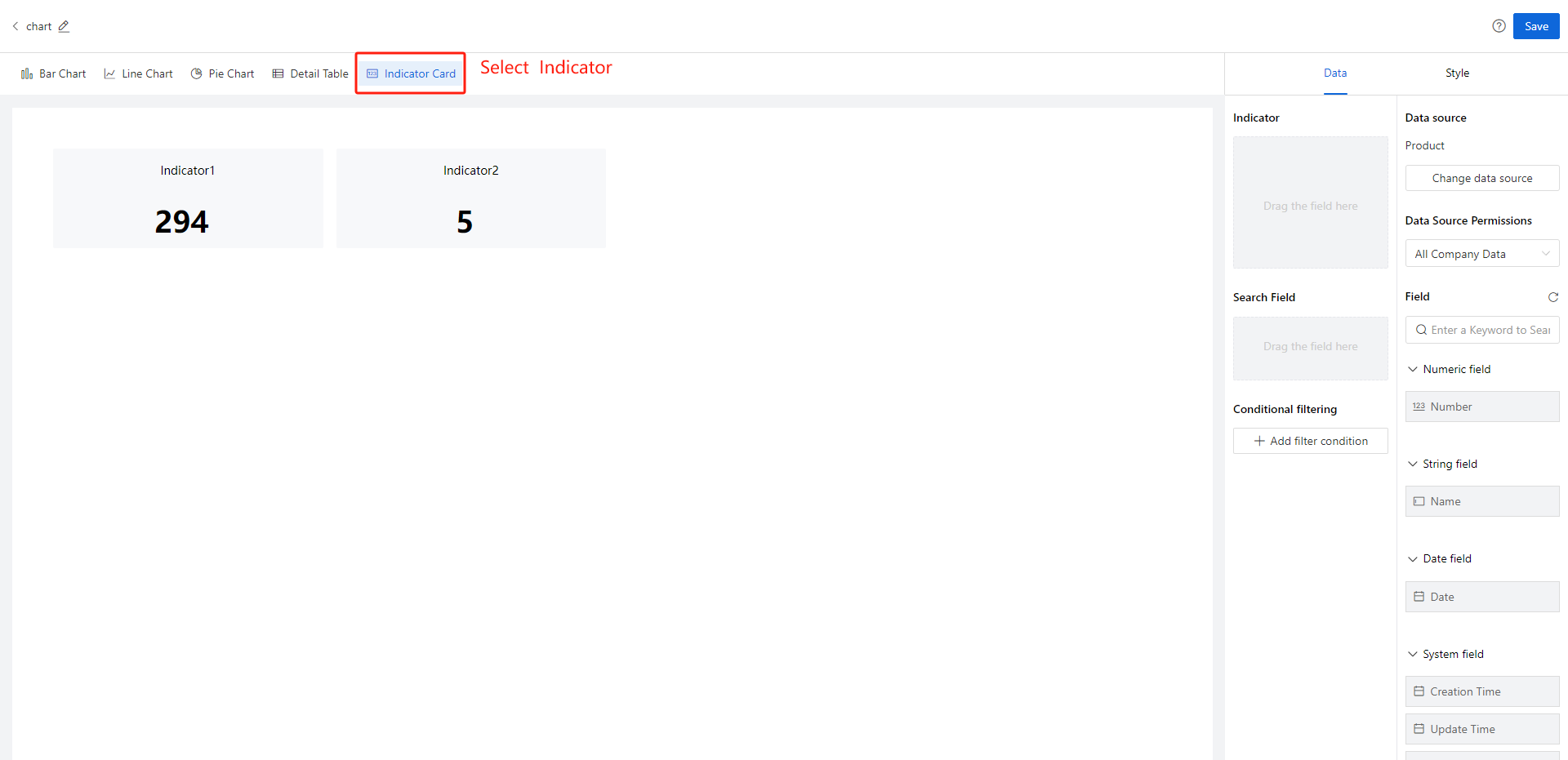
Select the 'Indicator Card' in the chart selection panel: Clicking the indicator card on the homepage displays demo sample data, as shown in the figure below.
Step-2 Add indicator field
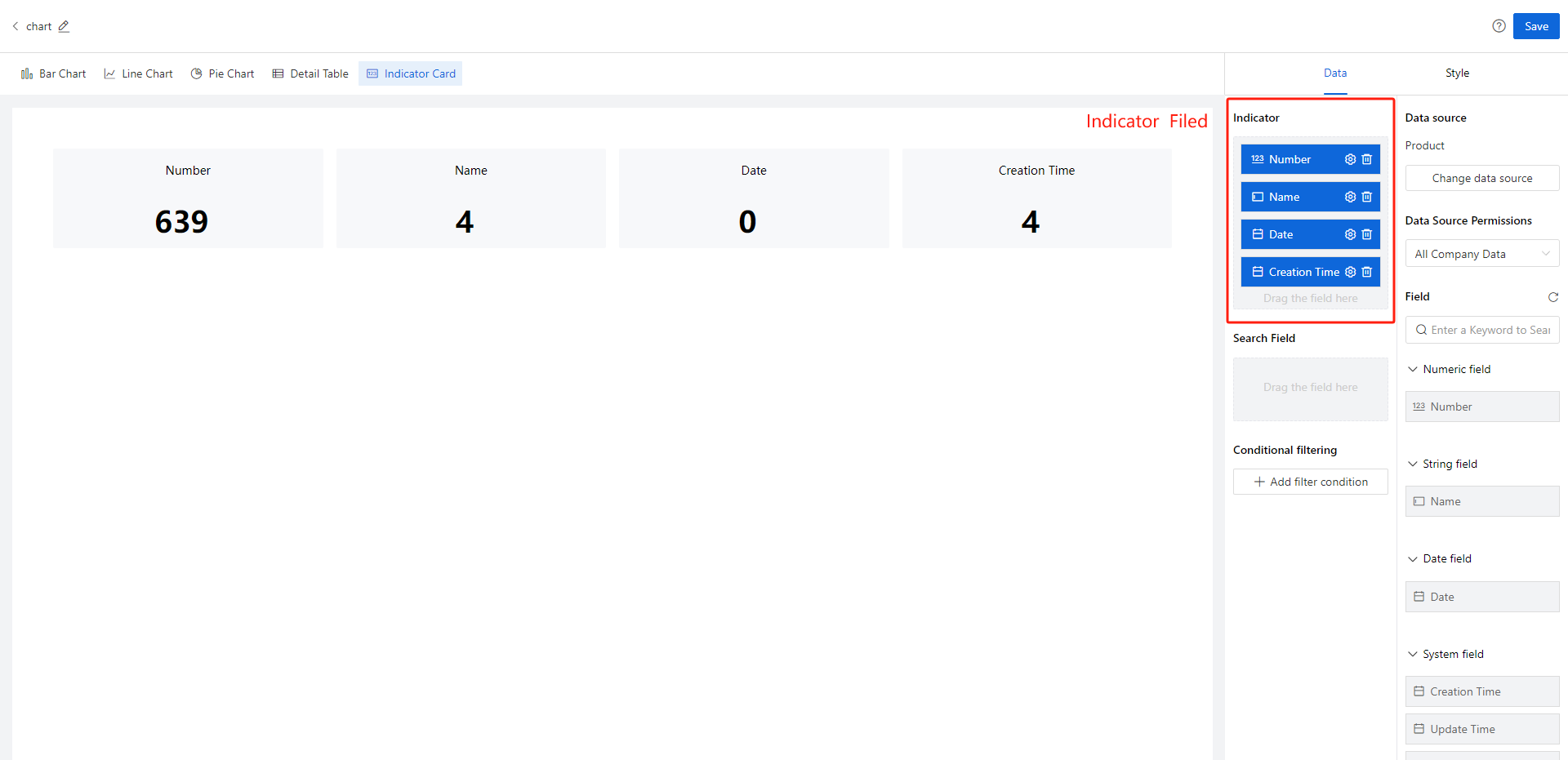
In the chart selection panel, select 'Add Metrics to Indicator Card graphic': Drag dataset fields into the Metrics section.
Step-2 Style settings
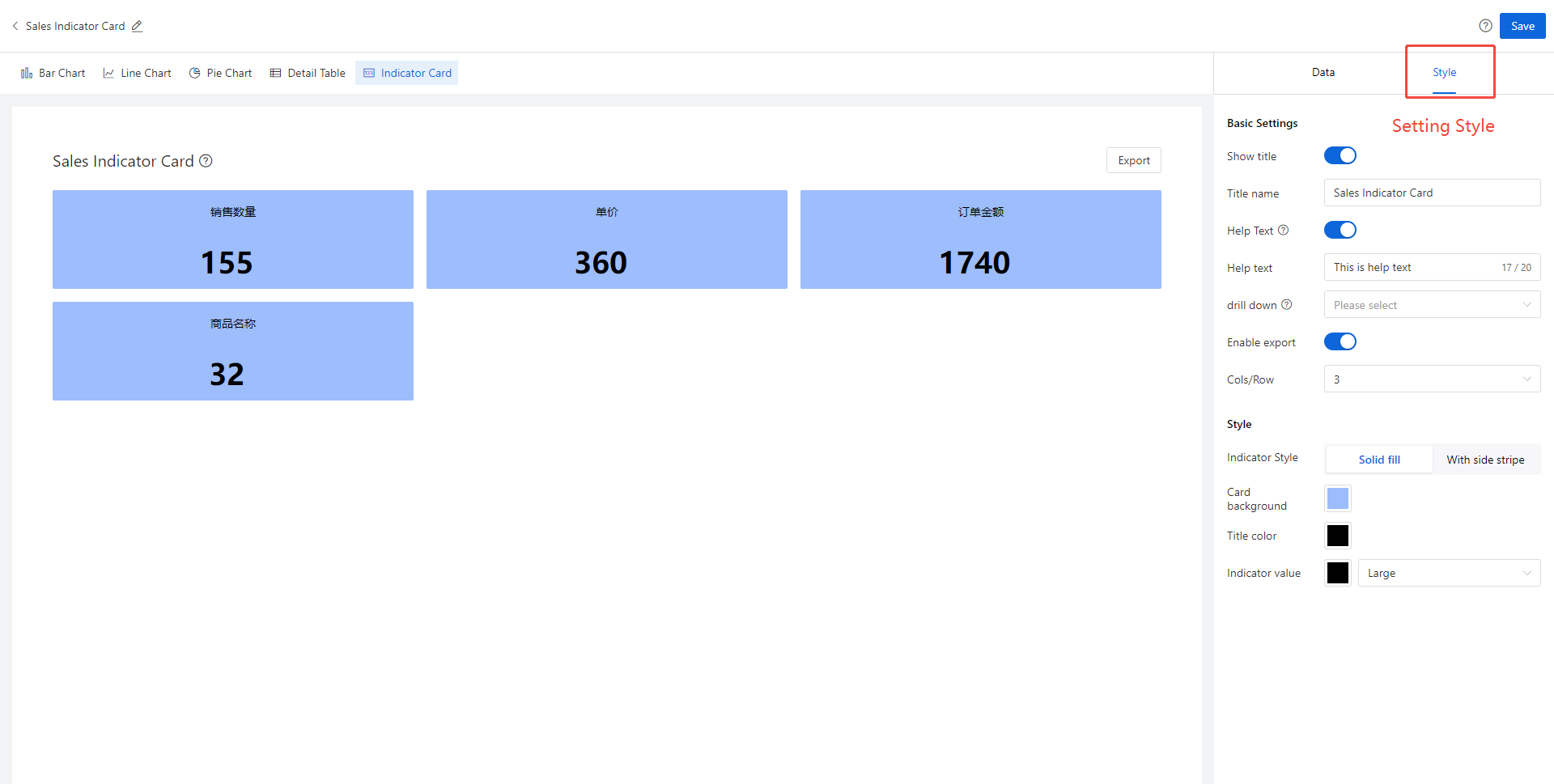
[Style Configuration Description]
| Classification | Configuration Items | Purpose |
Basic Style
| Show title | Control whether the chart title in the upper left corner of the canvas is displayed. When closed, the chart title will not be displayed in the report, The words "Sales atatistis" are shown in the following figure |
| Title name | You can name the chart by yourself | |
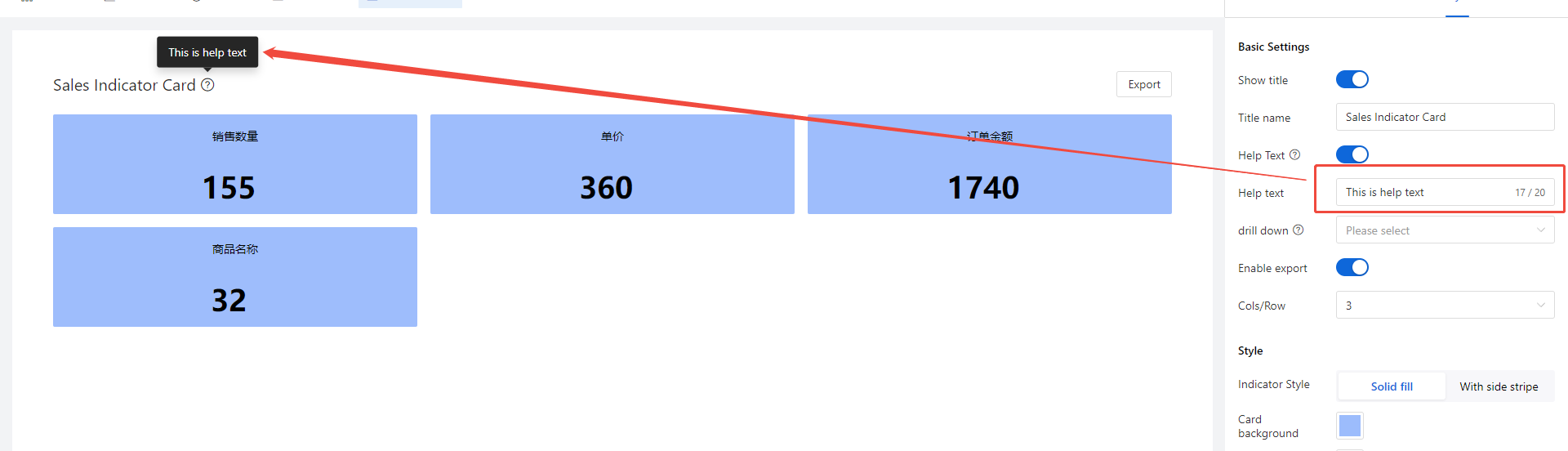
| Help text | Control whether the help copy is displayed in the chart. If enabled, client users can see a "?" icon after the chart title and the corresponding help copy when moving the mouse over the icon
| |
| Help text content | Enter a description of the chart here to help client users understand the chart data | |
| Drill down | After enabling, you can configure drill-down detail table reports that require setup. Please select a detail table report that shares the same data source as the current report. | |
| Enable export | After enabling, the client-side application can export indicator card data to local Excel files. | |
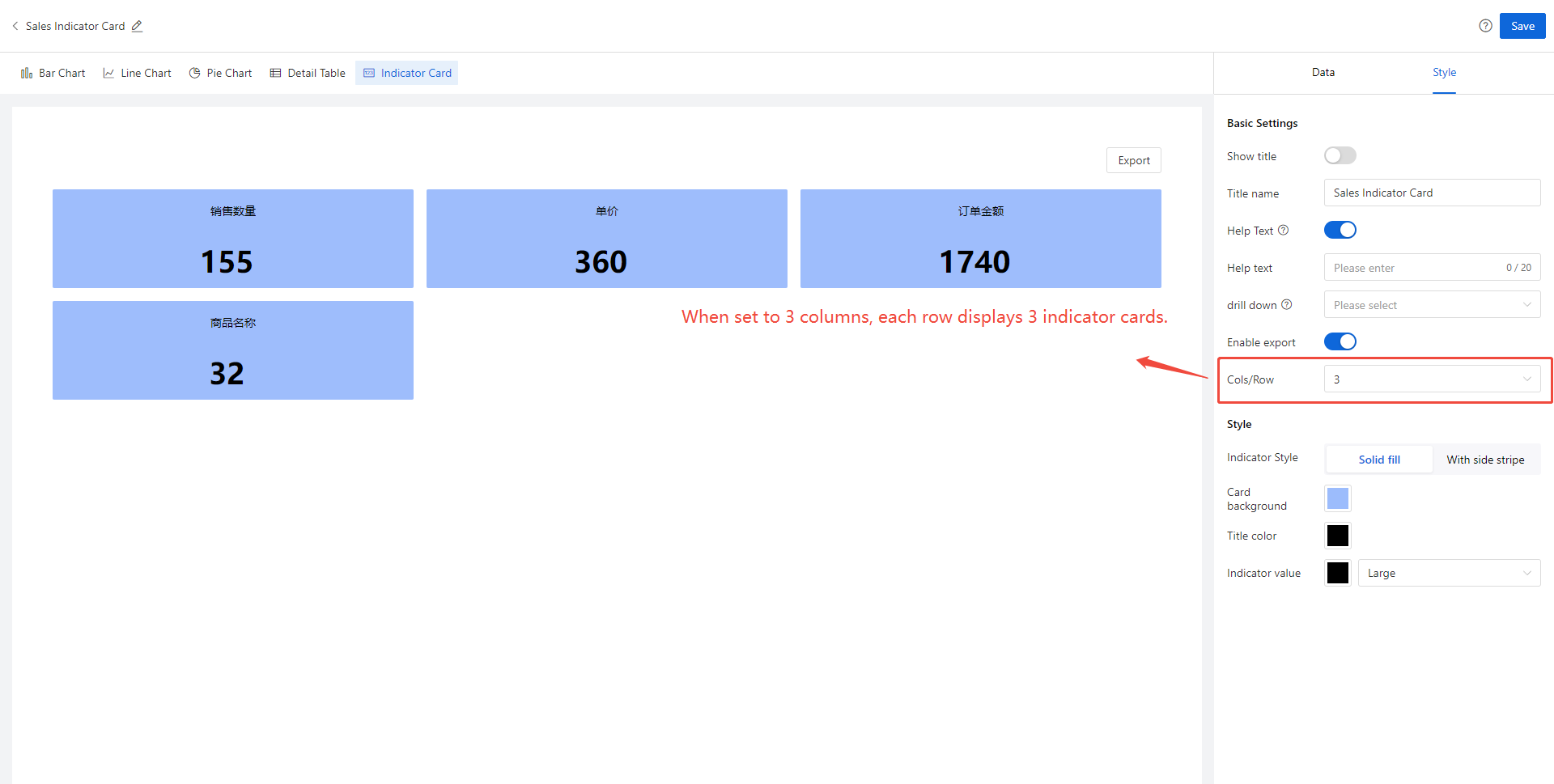
| Cols/Row | Selectable options: 4 columns, 3 columns, or 2 columns.
| |
Indicator card style
| Indicator style | Select either a solid fill style or a side-bar style for display. |
| Card background | The background color of the indicator card can be customized. | |
| Title color | The title color of the indicator card can be customized. | |
| Indicator value | The font size, weight, and color of numbers in the indicator card can be adjusted. |