
The approval node supports the configuration:Node name, approver, approval mode, no-approver rules, field permissions, buttons, validation, and notifications.
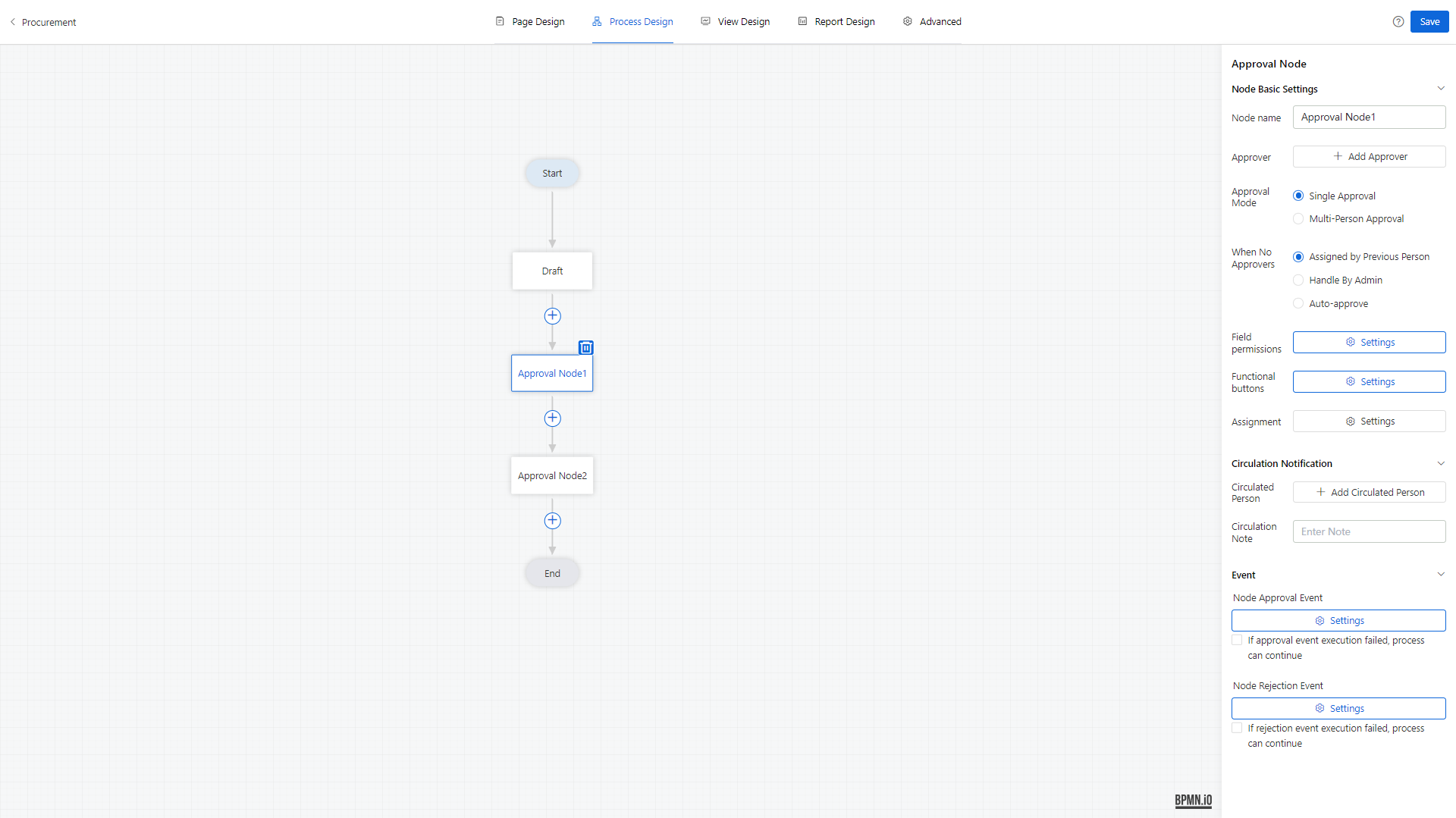

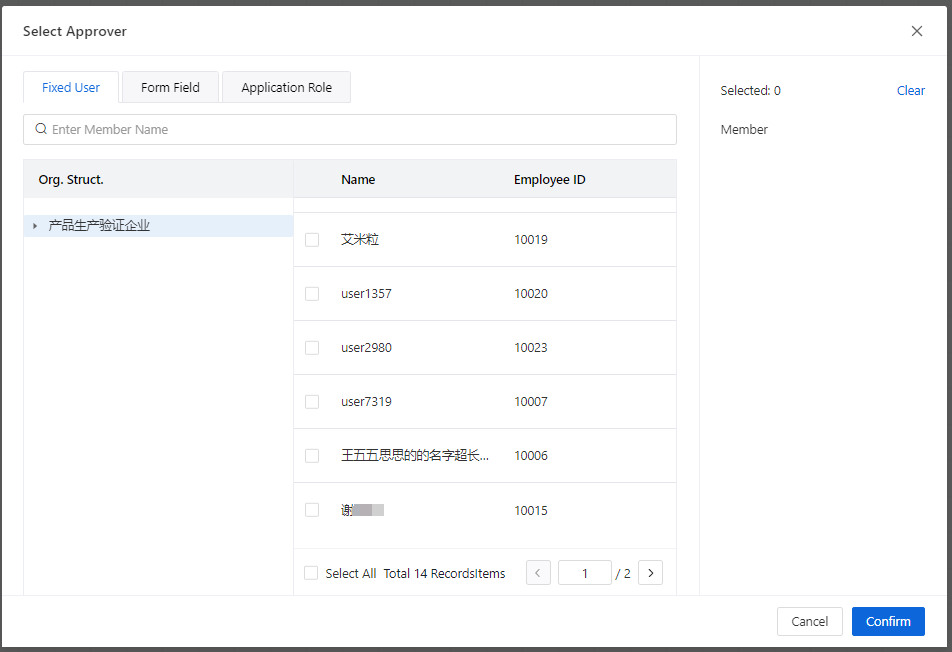
1、Approver Settings
Choose from address book or form controls; Multiple approvers can be selected.
Multiple Approvers: Select different approval modes for different outcomes.
2、Approval Mode
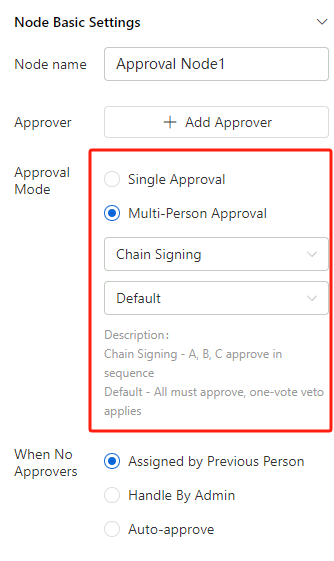
Approval mode supports single-approval and multi-approval。Multi-approval modes support Chain signing and Parallel signing。
Chain signing:A → B → C (in order);
- Approvers (A, B, C) must approve in sequence. After A completes the approval, the task moves to B's pending list. After B completes the approval, the task moves to C's pending list.
Parallel signing: A, B, C (simultaneously);
- Approvers (A, B, C) receive the task simultaneously in their pending lists.Once A, B, and C complete their approvals, the process continues according to the configured approval rules.
Sequential and Parallel Signing Modes
Approval Mode | description | |
| Chain signing | Default | A, B, and C must all sign. If any one person rejects, the approval fails. |
One-Vote Veto | If any one person (A, B, or C) votes to reject, the process node is rejected, and the remaining approvers do not need to continue | |
One-Vote Pass | If any one person (A, B, or C) votes to approve, the process node is approved, and the remaining approvers do not need to continue. | |
All Sign, Pass by Ratio (Customizable Ratio) | A, B, and C must all sign. If the approval ratio reaches the set threshold, the process node is approved. | |
Parallel signing | Default | A, B, and C must all sign. If any one person rejects, the approval fails. |
| One-Vote Veto | If any one person (A, B, or C) votes to reject, the process node is rejected, and the remaining approvers do not need to continue. | |
| One-Vote Pass | If any one person (A, B, or C) votes to approve, the process node is approved, and the remaining approvers do not need to continue. | |
| Any Approval | If any one person (A, B, or C) votes to approve or reject, the process node is approved or rejected accordingly. | |
| Pass by Ratio (Customizable Ratio) | If the approval ratio reaches the set threshold, the process node is approved, and the remaining approvers do not need to continue. | |
| All Sign, Pass by Ratio (Customizable Ratio) | A, B, and C must all sign. If the approval ratio reaches the set threshold, the process node is approved. | |
3、Rules for When No Approver is Found
This rule determines how to handle situations where no approver is found due to reasons such as the assigned approver leaving the company or incorrect settings. Three modes are supported:
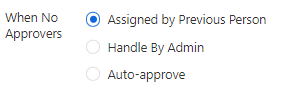
Designated by the Previous Approver
- During the approval process, after the current approver submits, a dialog box pops up for the approver to designate a handler for the node with no approver.
Handled by System Administrator
- During the approval process, after the current approver submits, the process flows normally to the node with no approver. The system administrator then designates a handler for the node on the process monitoring page in the admin console.
Auto-Approval
- During the approval process, after the current approver submits, the process skips the node with no approver and proceeds to the next node, where the next approver continues processing.
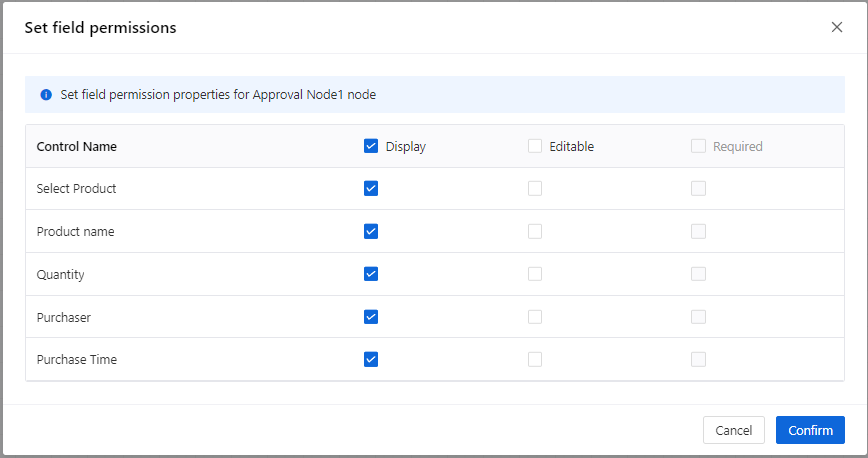
4、Field Permissions
The default field permissions for approval nodes are set to visible. These can be modified to editable or required.
Note:
A field must first be set to visible before it can be marked as editable.
- A field must be marked as editable before it can be marked as required.
5、Function Buttons
The approval node supports the following function buttons: Agree、Save、Reject、Transfer、Recall、Circulate、Terminate、Add Signatory。
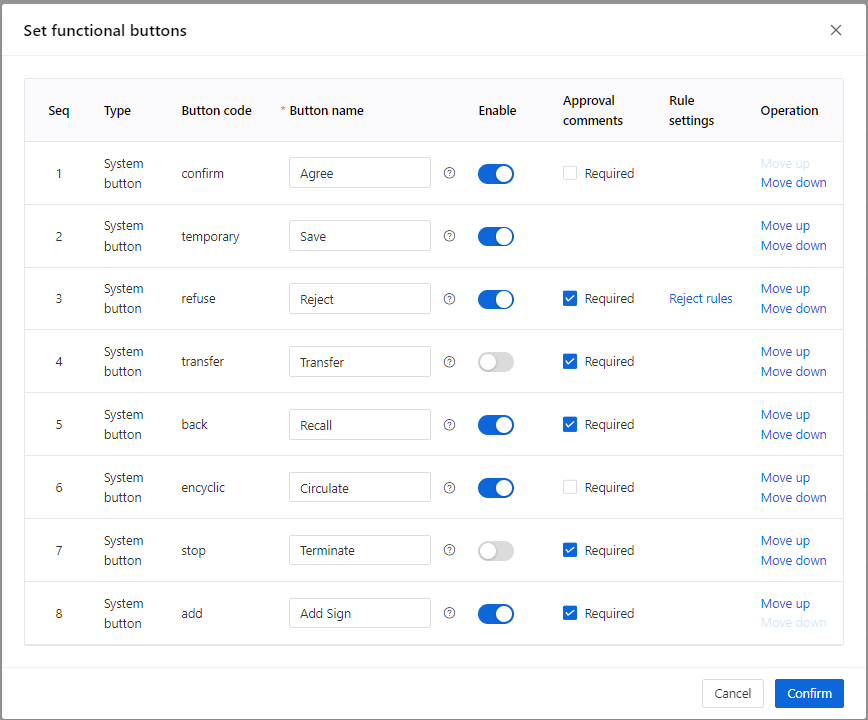
Button Functions and Effects:
| Button Name | Button Meaning | Effect After Clicking |
| Agree | Submit to Next Node | The process is submitted to the next node. After clicking "Details," further approval is not allowed. |
| Save | Save as Draft | Stays on the current page and can be viewed in the pending list. Clicking "Details" allows continued approval. |
| Reject | Reject to Previous Node | The process is rejected to a previous node based on rejection rules. It can be viewed in the completed list, but further approval is not allowed after clicking "Details." |
| Transfer | Transfer the Process to Another Approver | The process stays at the current node, and the approver is changed from the reassigner to the new assignee. The new assignee can approve the process, while the reassigner can view details in the completed list but cannot approve further. |
| Circulate | Circulate the Process for Others to View | Stays on the current page, allowing other operations. Recipients can view the process in the "Circulated List" under the Process Center. |
| Terminate | Terminate the Process | The process stops and does not proceed further. It can be viewed in the completed list, but no further actions are allowed. |
| Add Signatory | Add an Approver to the Process | After adding a signatory, the process stays at the current node, and the new approver is added. Once the new approver completes their approval, the process returns to the original approver's pending list for continued approval. |
| Recall | Recall the Approved Process | Requires operation in the completed details. The recalled process can be approved again. |
The "Recall" button is displayed and operated on the completed details page.
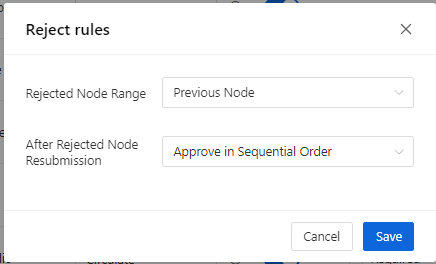
In the admin console, rejection rules can be configured to support the following options:
- Reject to Document Creation Node
- Reject to Previous Node
- Reject to Specified Node
6、Assignment
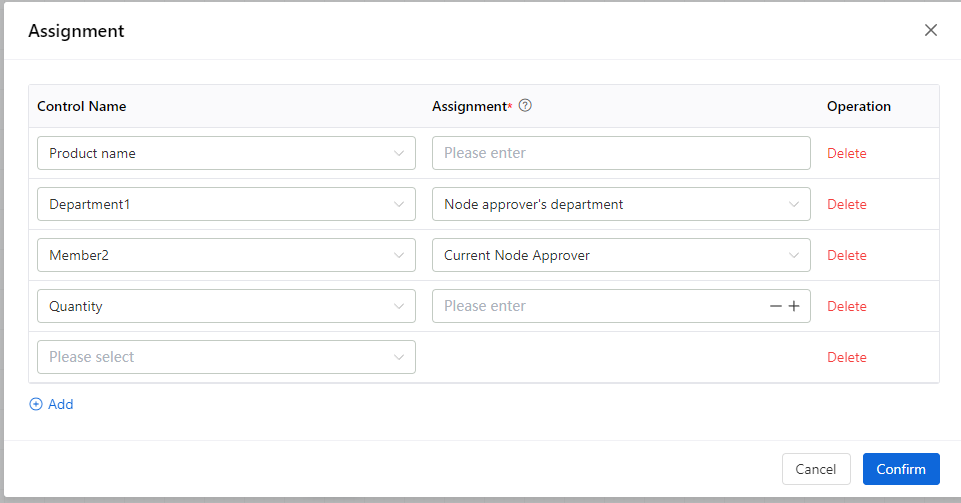
The process runs to the current node, you can assign values to the fields, and you need to set the fields and contents to be assigned in advance.
Assignment is performed only when the approval mode is “Single person approval”.
Enter or select the content of the assignment according to the field type. For personnel assignment, you can only select “current node approver”, and for department assignment, you can select “node approver's department” and “node approver's part-time department”. ".
7、Circulation Notification
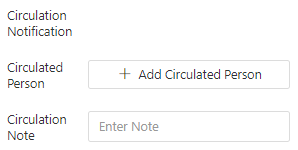
The circulation notification feature supports configuring recipients and circulation comments. When setting recipients, allowing multiple people to be selected.
Circulation comments are text-based, and once set, recipients can view these comments in the approval records。
8、Event
Process events include approval events and reject events, which are used to carry out some actions such as data service calls, intelligent assistant calls, message notifications, etc. after a process node passes or rejects.
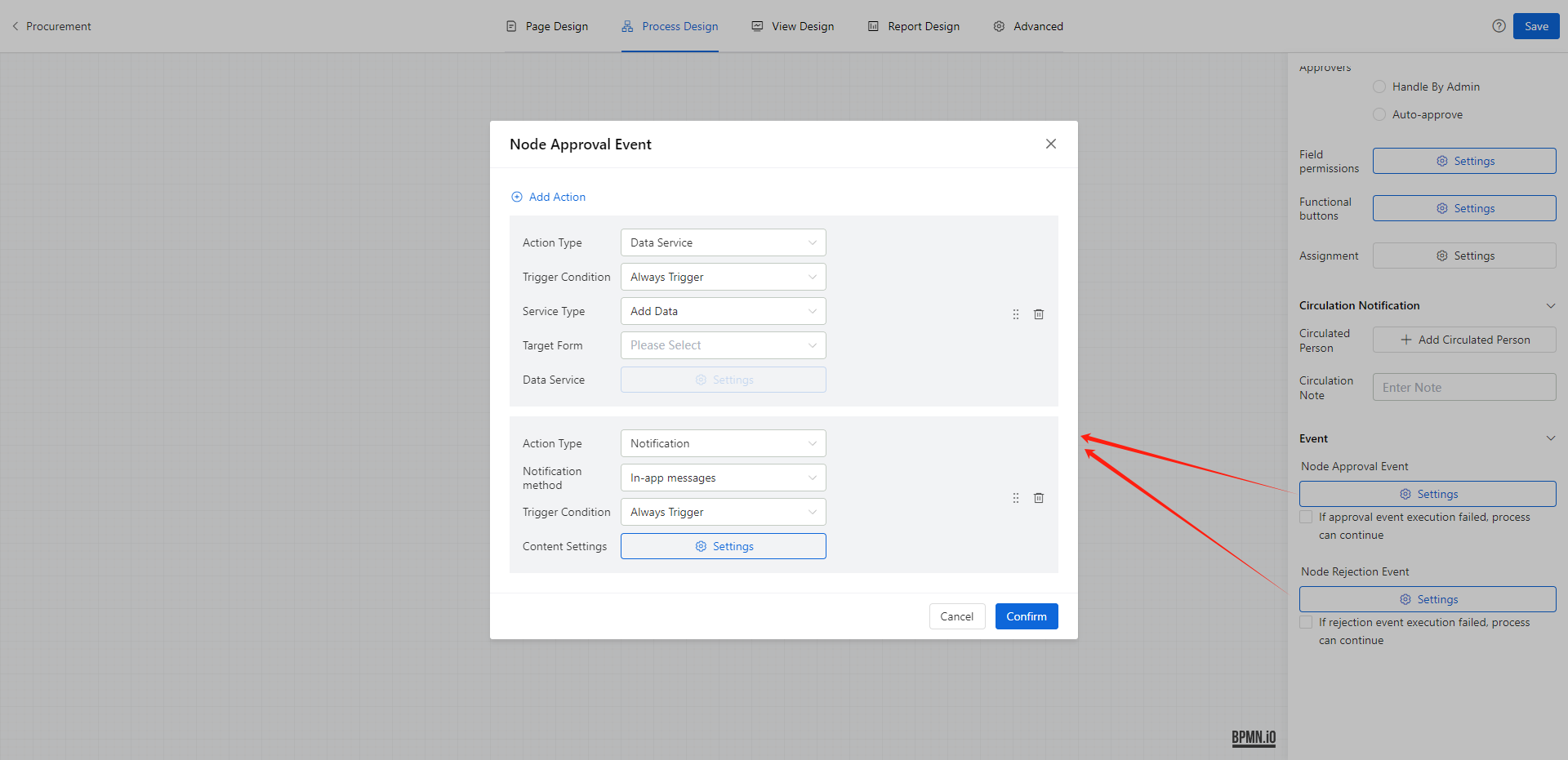
Multiple actions can be added to an event, and the actions can be dragged to adjust the sorting;
At runtime, multiple actions are executed according to one transaction; if an action fails, all events will be rolled back.
If an action fails, all events will be rolled back. If the event fails, the process can continue to flow: If this item is not checked, the process will become “abnormal state” after the event fails; if it is checked, the event failure will not affect the process state, and the process can continue to flow.