[Usage Scenario]
It is suitable for scenarios that require directly highlighting key data. For example, indicator cards can be used to display metrics such as total product sales, delivery quantity, and warehouse inventory levels.
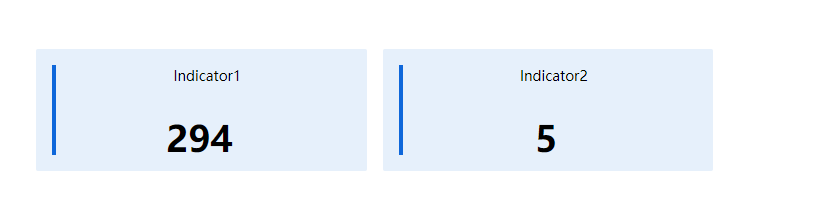
As shown in the figure below, the indicator card directly displays the total sales amount, effectively highlighting this key metric in a card format.
[Basic Requirements ]
| Indicator | Indicator field type |
| Required, maximum of 8 fields. | Must be an aggregatable field. |
Indicator:The numbers displayed in the indicator cards are aggregated results, meaning that the indicator cards must exclusively show numerical values.
[Configuration steps]
Step-1 Select chart and configure data sources
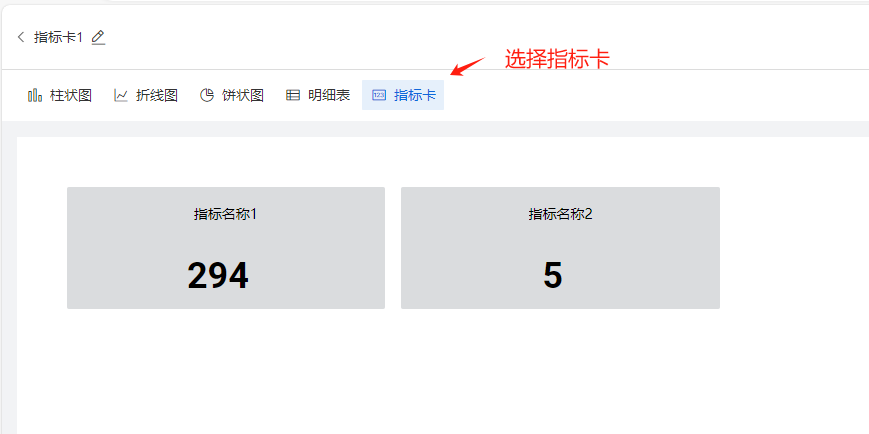
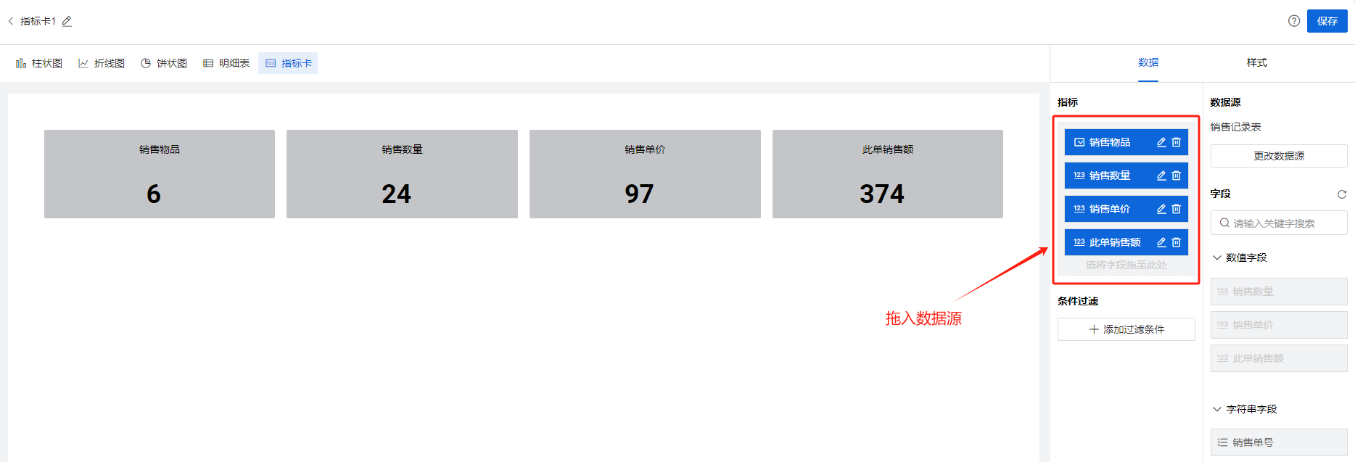
Select the 'Indicator Card' in the chart selection panel: Clicking the indicator card on the homepage displays demo sample data, as shown in the figure below.
Step-2 Add indicator field
In the chart selection panel, select 'Add Metrics to Indicator Card graphic': Drag dataset fields into the Metrics section.
3、【样式配置】
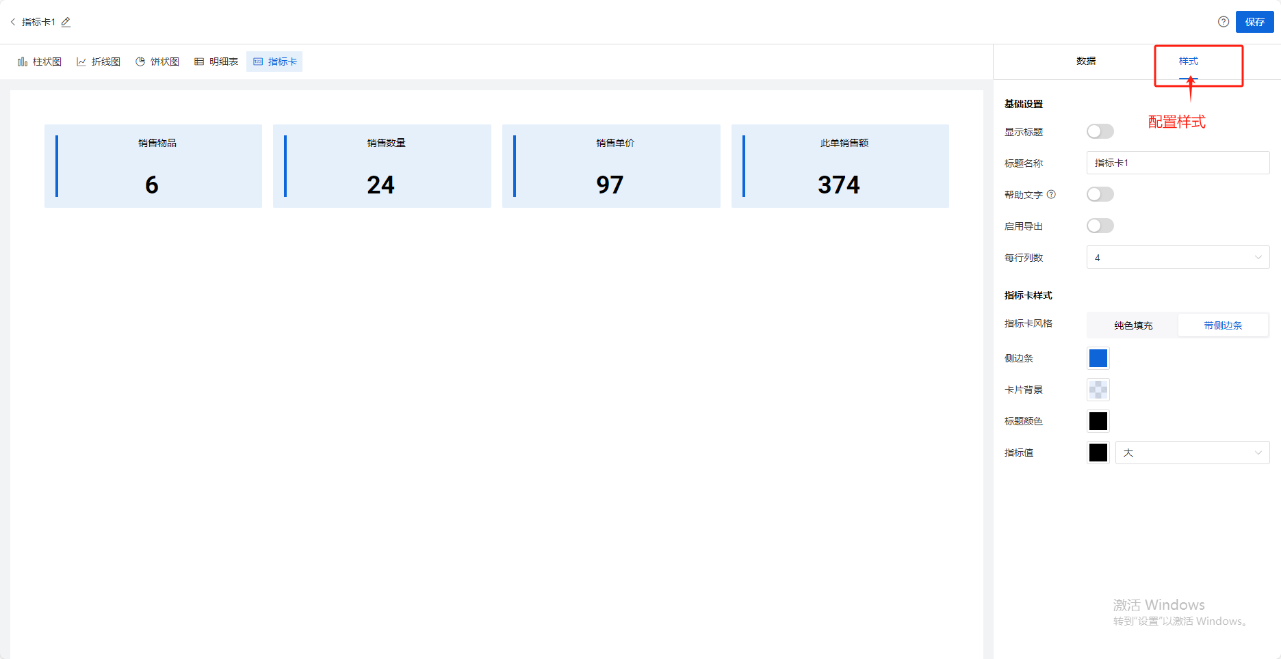
【样式配置说明】
| 样式设置分类 | 配置项 | 用途 |
指标卡
| 基础
| 显示标题 | 默认关闭,开启后会在画布左上角显示指标卡的标题 |
标题名称 | 支持用户自定义标题名称 | ||
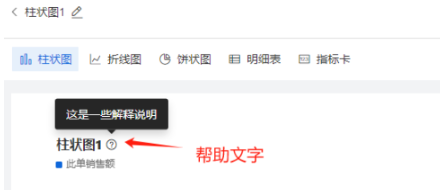
帮助文字 | 开启后,标题右侧出现小问号,鼠标悬浮时,出现帮助文字具体内容
| ||
帮助文字内容 | 支持用户自定义帮助文字的文案,例如“本月销售总额统计” | ||
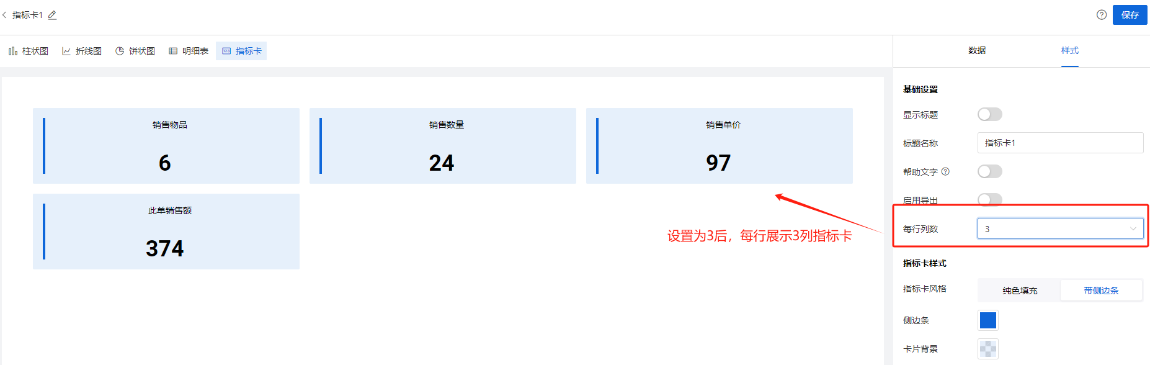
每行列数 | 默认:4, 可选值:4,3,2
| ||
指标卡样式
| 指标卡风格 | 支持用户切换:纯色填充,带侧边条 ,这2种展示风格 | |
背景色值 | 支持用户自定义指标卡的背景色 | ||
指标字号 | 支持用户改变指标卡中数字的字号粗细,颜色 |